
Mapmaking
Making a Fantasy Map for Truesight
Choose a scale, find a way to draw your setting, and prepare a map that is easy to explore.
Page info
A useful fantasy map gives you somewhere to begin, not an obligation to finish the whole world. This guide helps you choose a scale and a way to make the image, then prepare it for exploration in Truesight. If you already have a map ready to upload, go straight to Getting Started.
Choosing your map's scale
Start with the area your story needs next. A continent shows the distance between kingdoms; a province shows the roads between towns; a city shows the streets around a tavern. A dungeon plan helps with a single adventure. None is the required first map.
Imagine The Lantern, a riverside inn. A regional map might show the town and its ferry route, while a later town map shows where the inn stands. You can place the same Location Entry on both maps, so you do not have to repeat its description. Sketch enough geography to support the story and leave room for discoveries.
Free map tools
If you are exploring a setting for the first time, begin with a tool you can comfortably learn and revise. These options offer different starting points:
- Inkarnate is a browser mapmaker with a free plan. It suits a painted approach: build up land, scenery and symbols until your setting takes shape. Check its current plan for included assets and exports.
- Azgaar's Fantasy Map Generator is free and open source. Begin with a generated world and edit its geography and political detail rather than drawing everything from scratch.
- Dungeon Scrawl is a browser tool for dungeons and battlemaps. It is a useful choice for corridors, rooms and a more local adventure map.
A free tool is enough to start. Before committing to a workflow, check that you can export an image at a useful size. If you intend to publish the map, read the tool's terms and the licenses for any artwork you use.
Premium map tools
Paid options can be useful when you know the drawing style and editing workflow you want. Compare the tool itself rather than assuming that a paid map will suit your story better.
- Wonderdraft is a desktop tool for world and regional maps, with landmass brushes, symbols and editable labels. It uses a one-time purchase rather than a subscription.
- Worldographer is a desktop mapmaker for worlds, settlements, dungeons and battlemaps. You can try its free version before considering a Pro license.
- Inkarnate's paid plans extend its browser mapmaking workflow. Compare the current asset and export options with the free plan before upgrading.
Prices, plan features and licensing can change. Follow the official links for current details, and retain your editable project so you can revise the map later.
Making a map with AI
An image generator can help explore the look of a setting from a written description. Describe the scale, terrain and visual style you want, then inspect the result as a draft rather than a finished reference.
Generated maps may have unclear lettering, inconsistent geography or details that are difficult to revise. Check the roads, rivers and distances your story depends on. A map without printed names is still usable: you can add names through Entries and place their pins yourself. If you want Scribe to read names already on the map, add clear labels in an editor before exporting it.
Keep the source image and any edited version, and check the generator's terms before publishing or selling the result. Choose this route when the picture helps you develop the setting, with room to correct it as you go.
Hand-drawn maps
A pencil sketch is enough. Draw the coast, road or river that matters, add a few recognizable places, and give them readable names. A simple map you understand can be more useful than a detailed one you cannot easily change.
Scan the drawing or photograph it in even light, looking straight down at the paper. Crop away the desk, straighten the image, and check that names remain legible when viewed on screen. Keep the original drawing so you can revise it or make a cleaner copy later.
Comparing your options
| Approach | Useful when | Think ahead about |
|---|---|---|
| Free mapmaking tools | You want to try drawing or editing a setting before buying a tool. | Available assets, export options and the time to learn the editor. |
| Paid mapmaking tools | You have a preferred style and want an ongoing editable map project. | Cost, editing workflow, export options and artwork licenses. |
| Generated images | You want a visual starting point to develop and correct. | Readable names, consistent geography and later revisions. |
| Hand-drawn maps | You want a personal sketch with direct control over its details. | Clear photography or scanning, and keeping an editable original. |
Choose the approach you will enjoy returning to. The map can grow alongside your Entries; it does not need to contain every place before you start.
How Scribe reads your map
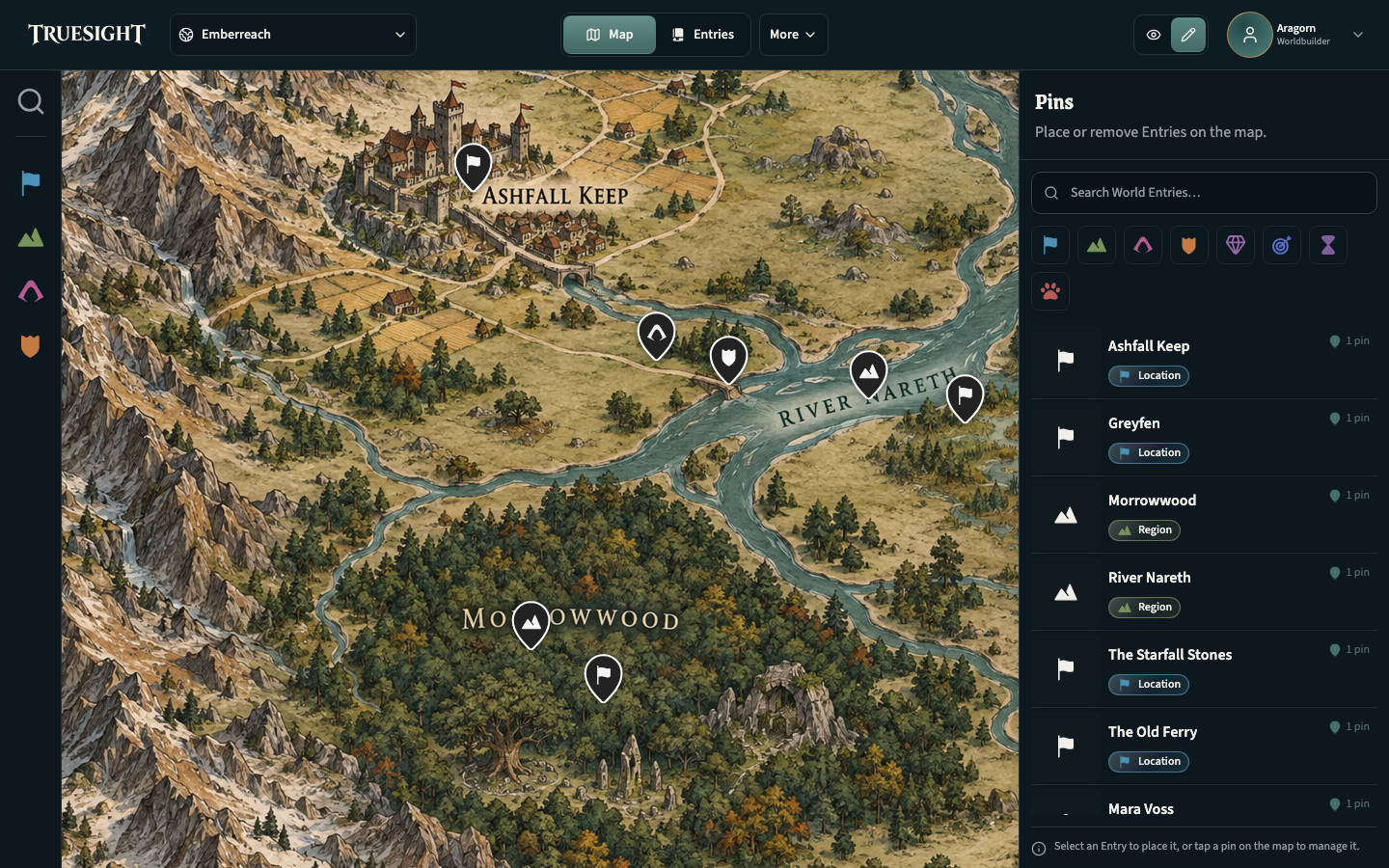
Scribe looks at the names and visual features already on your map. It reads text labels, looks for recognizable symbols such as towns, castles and ruins, and connects names with the places they describe. It also looks at larger areas, such as forests, mountain ranges and bodies of water, to find Regions.
A town symbol beside the word “Greyfen” helps Scribe identify a named Location and where to place its pin. A name spread across a forest can help identify a Region instead. The names, symbols and surrounding geography work together to describe what is there.
These discoveries become Entries and placements you can review. Scribe can miss a label, associate a name with the wrong symbol, or mistake decoration for a place. Check its results, rename Entries and move or remove pins where needed.
You can help by keeping labels clear, spacing nearby symbols apart, and making important features stand out from the background. Not every drawing needs labels: maps without them remain useful, and you can create Entries and place their pins manually. The upload page tells you whether Scribe is available for your map type.
Preparing an export
Look at your map at the size you expect to use it. Are the town names readable? Can you distinguish the ruin from the nearby trees? Good contrast and uncluttered labels matter more than adding another layer of decoration.
- Export a PNG, JPEG, WebP, TIFF or BMP image no larger than 25 MB. If the upload reports a size or dimension limit, reduce the export and try again.
- Keep enough resolution to read the smallest important labels, while avoiding unnecessary empty borders.
- Check for overlapping text, blurred lettering and decorative titles that compete with place names.
- Save the editable map project separately. Truesight works with the exported image, so changes to the original drawing still belong in your mapmaking tool.
Try a clear export before spending time perfecting every detail. You can begin writing the people and places while the artwork is still taking shape.
Bringing your map into Truesight
Create an account and a World, then upload the image from its maps view. Choose the map type that fits its scale and add a name and description. When Scribe is available, you can let it make a first set of discoveries or add everything yourself.
Continue with Scribing your map in Getting Started for the upload workflow, then create the Entries that make the picture a place worth exploring. If you want to see that result before drawing your own map, choose Try now on the home page to explore Emberreach.