
The basics
Getting Started with Truesight
Start with a map, add the people and places around it, and connect your world.
Page info
A map gives your setting a shape. Entries give its places a story, and connections make those stories easy to follow. This guide takes you from your first World to a map you can explore, whether you are preparing a game, writing fiction, or simply building somewhere you want to visit.
Choosing where to start
If you want to see how Truesight feels before preparing anything, choose Try now on the home page. You receive an editable copy of Emberreach: a starter World with a map and example Entries. Open a pin, follow its connections, and try editing an Entry. You can also create a few Entries of your own.
Guests cannot create Worlds, upload maps or use Scribe. When you create an account from your guest session, your Emberreach content stays with you, so the changes you made are not lost.
To start your own setting, create an account and a World. Choose its type and tone, then give it a name and a short description. You can begin with a map or with an Entry; you do not need to have the whole setting planned. World settings let you refine that context later.
Getting your map
Use a map you already have, a drawing you photograph, or an export from a mapmaking tool. Choose a scale that suits the next part of your story: a province for a journey between towns, a city for a local mystery, or a continent for the wider setting. More detailed maps can follow later, and the same Entry can appear on several maps.
Truesight accepts PNG, JPEG, WebP, TIFF and BMP images up to 25 MB. Keep names readable and export enough detail to see the places you care about. Truesight makes an image interactive; it is not a drawing editor. For a fuller comparison and preparation advice, read Making a Fantasy Map for Truesight.
Free map tools
Browser mapmakers and generators can help you get an image without buying a tool. The free map tools section explains which approaches suit regional maps and dungeon plans.
Premium map tools
If you want more control over the artwork and later revisions, compare the paid mapmaking options before choosing a tool.
Making a map with AI
A generated image can be a starting point, but names and geography need a careful look. The generated maps section covers those trade-offs.
Comparing your options
Choose the approach you can comfortably revise as your setting grows. See the mapmaking comparison if you are deciding between drawing, a mapmaking tool and a generated image.
Scribing your map
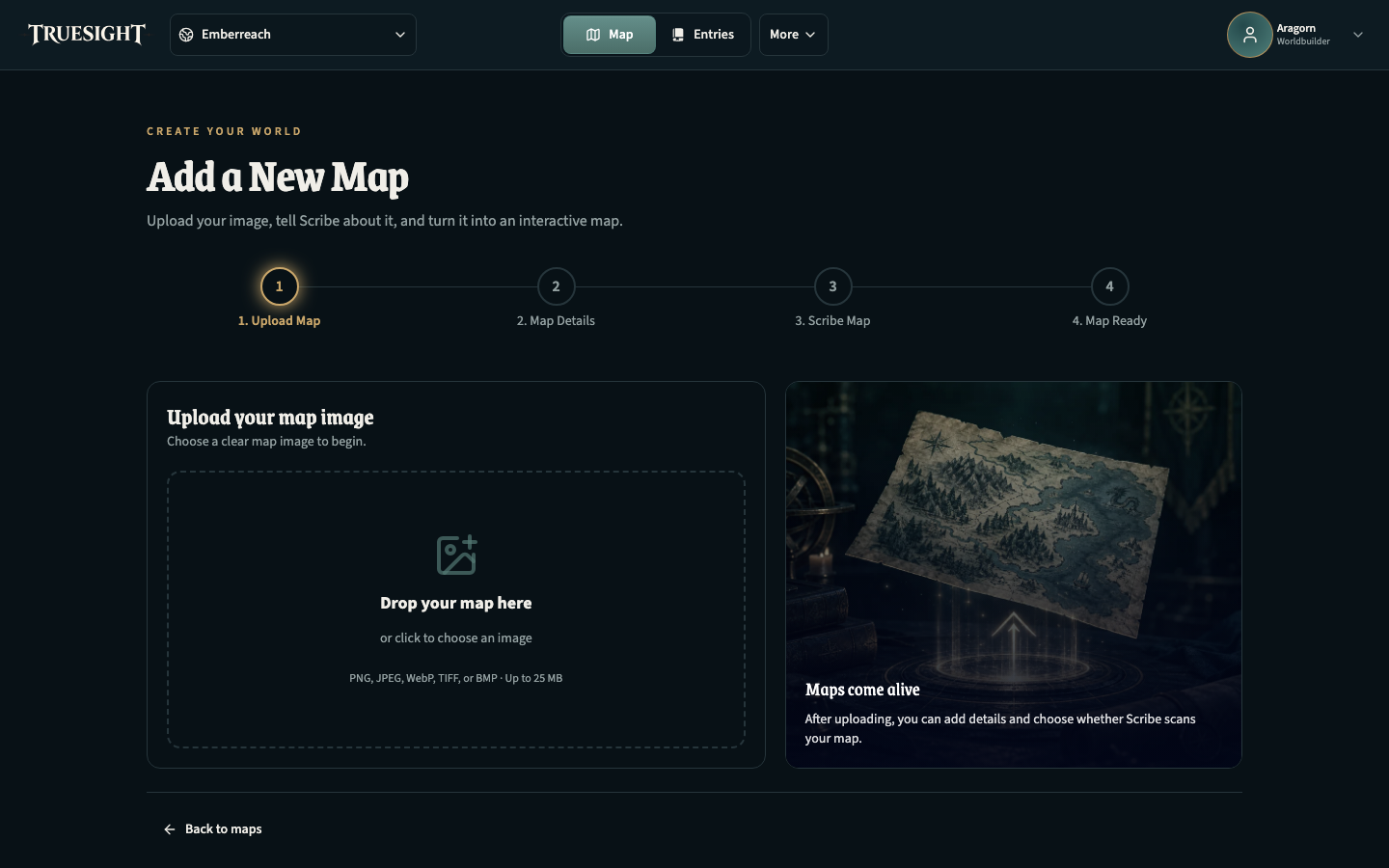
In your World, open the maps view and add a map. On Add a New Map, upload the image, then provide its name, map type and any useful description or tags. Those details help give the map a place in your setting.
When Scribe is available for the selected map type and your account, choose Start Scribing. Scribe reads names, looks for places and regions, and creates Entries with pins on the map. A map of a port town can become the starting point for its taverns, nearby ruins and surrounding countryside. The mapmaking guide explains how labels and symbols help Scribe read a map.
Scribing is optional. Choose Skip Scribe when it is offered, or Add Map when Scribe is unavailable. Unsupported map types remain usable, and you can add Entries and pins yourself. After a scan, review the discoveries: correct names, move misplaced pins, and remove anything that does not belong. You remain the author of your World.
Creating Entries
An Entry is one piece of your World: a place, a person, a faction, an object, a quest, an event, a creature or a note. From the Entries library, choose Create New Entry and select the type that fits. Types of Entries explains the choices.
Begin small. A tavern called The Lantern and a summary such as “A riverside inn where the ferry crews gather” already give you something useful. Add its description and relevant facts as you need them. Entries belong to your World rather than to a single map, so an innkeeper or a guild can exist before you decide where to place a pin.
Open the Entry in Edit mode to develop it. Its type determines the available facts and optional sections; use Add section to make room for more history, personality or other details. Images can help establish its appearance. In View mode, the Entry is read-only.
Where a section offers Scribe, you can ask for help developing that part of the Entry. The World context and connected Entries help keep the writing grounded in your setting. Review the result and keep or revise it to match your story; you do not need to fill every section.
Placing an Entry on the map
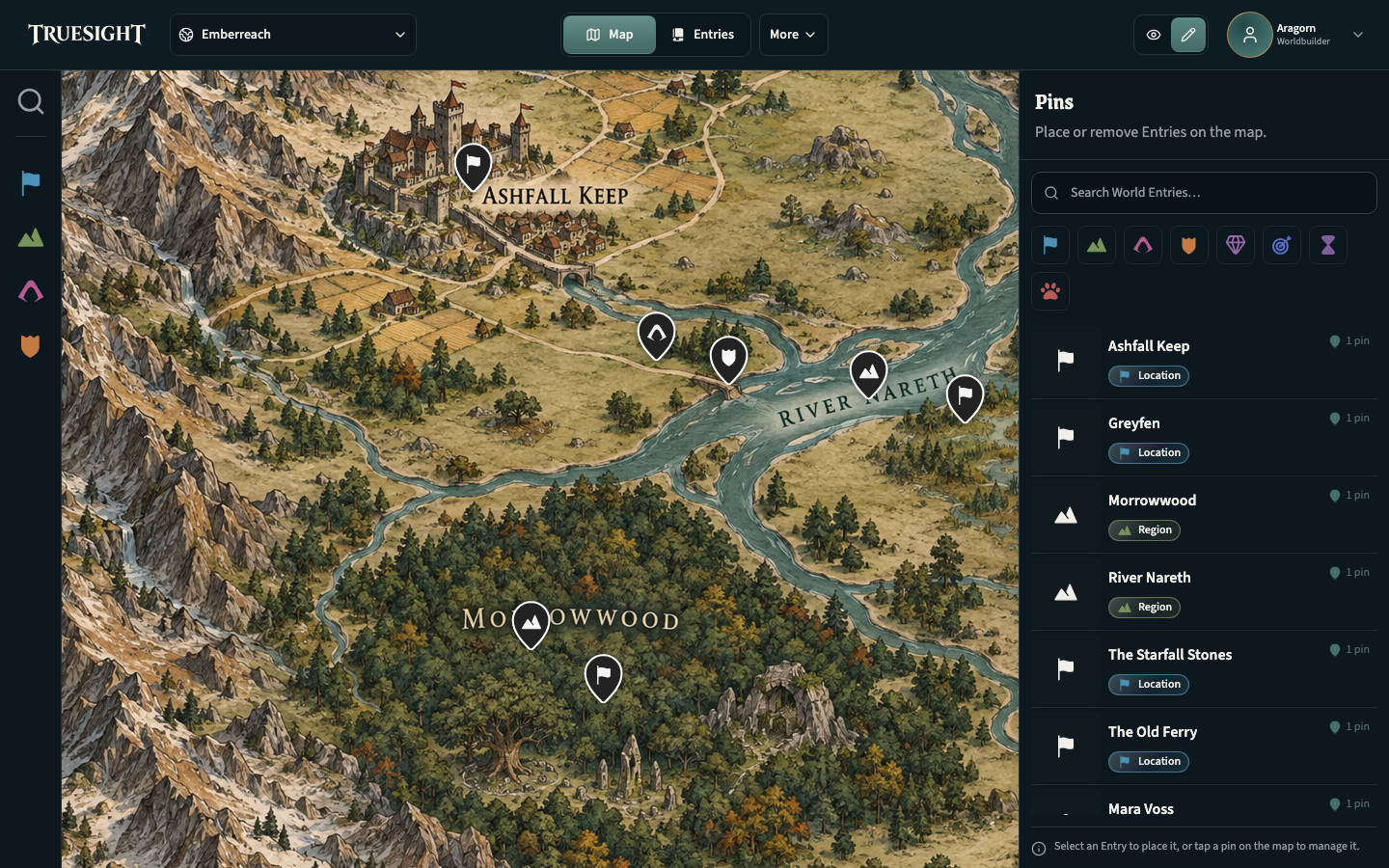
Open a map in Edit mode and use its Pins panel. On a phone, choose Pins in the panel at the bottom of the map; selecting it enables Edit mode. Find the Entry you want to place, select it, choose the placement action, and tap or click its spot on the map. On larger screens you can also drag the pin handle onto the map.
Place The Lantern beside the river, then place its innkeeper nearby if a separate pin would be useful. A pin points to an Entry; it does not create a second copy of its content. An Entry can appear on several maps or have no pin at all.
To change a placement, select its pin and choose Move pin, then choose the new position. Removing the pin takes it off this map while leaving the Entry and its connections in your World.
Linking Entries together
Open an Entry in Edit mode and choose Add connection in Connections. Select a relationship, then find the other Entry in the same World. The available relationships depend on the Entry types.
For our example, create the innkeeper as a Character and the river guild as a Faction. If The Lantern is the innkeeper's home, connect the Character to it with Home. The tavern shows the reverse connection, Home of. Connect the innkeeper to the guild with Member of; the guild shows Has member, and you can record the innkeeper's role.
Use Related to for a narrative connection that does not fit a more specific relationship, such as a Quest involving the tavern. Moving or removing a map pin does not break these connections. From one place you can now follow its people, their loyalties and the stories around them.
That is enough to begin. Add detail when your story calls for it, and return to Types of Entries when you want to organize a growing cast of people, places and ideas. The Features page shows more of the map and Entry workflow.